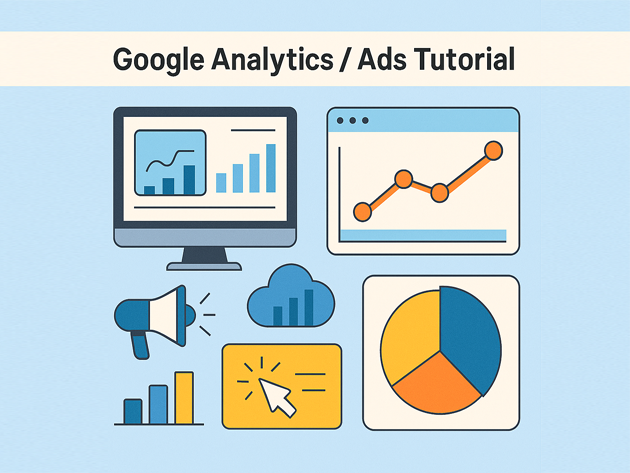
Google Analytics Google Ads Tutorial for Developers and Marketers
This Google Analytics Google Ads tutorial walks through a practical workflow: set up GA4, send clean events from your site, link Google Analytics to Google Ads, and measure which campaigns actually drive conversions. It is written for developers and technical marketers who want copy-paste snippets and a mental model they can reuse on multiple projects.
In this Google Analytics Google Ads tutorial you will:
- Set up a basic GA4 property and install the tag
- Send custom events (e.g.
signup,checkout) from your site - Mark key events as conversions inside GA4
- Link Google Analytics to Google Ads so conversions feed back into bidding
- Read simple reports to answer “which campaigns are working?”
To connect this guide with the rest of your stack, you can pair it with the
Linux basics for developers tutorial,
PHP backend basics tutorial,
Node.js backend basics tutorial,
MariaDB tutorial for developers,
SQL basics tutorial,
and the
Git version control tutorial
and
CI/CD pipeline tutorial
for how this fits into a full analytics platform.
1. Google Analytics Google Ads tutorial: the measurement loop
At the center of any Google Analytics Google Ads tutorial is the measurement loop:
- Users click an ad and land on your site.
- Google Analytics tracks page views and events, including conversions.
- Conversions are sent back to Google Ads.
- Google Ads uses those conversions to optimize bids and targeting.
If any piece is missing (no events, no conversions, no link between GA and Ads), your campaigns are basically flying blind. So we’ll start by installing GA4 correctly.
2. Install GA4 on your site (gtag.js)
First step in this Google Analytics Google Ads tutorial: install the GA4 tag. There are multiple ways to do it (via Google Tag Manager, hard-coded, theme integration). Here we’ll use gtag.js directly so you see the underlying calls.
2.1 Base GA4 snippet
In your global layout (e.g. <head> of your WordPress theme, Magento layout XML, or React shell), add the GA4 base tag you get from the GA interface. It looks roughly like this (replace G-XXXXXXX with your measurement ID):
<!-- Google tag (gtag.js) -->
<script async src="https://www.googletagmanager.com/gtag/js?id=G-XXXXXXX"></script>
<script>
  window.dataLayer = window.dataLayer || [];
  function gtag(){dataLayer.push(arguments);}
  gtag("js", new Date());
  gtag("config", "G-XXXXXXX");
</script>
Once this is live, GA4 should start receiving basic page_view events.
3. Track meaningful events (signup, checkout, etc.)
The next part of this Google Analytics Google Ads tutorial is sending the events that actually matter to your business: signups, add-to-cart, checkout, contact form submitted, and so on.
3.1 JavaScript event for a signup button
Suppose you have a “Create account” button with an ID of signup-btn. You can attach a GA4 event like this:
document.addEventListener("DOMContentLoaded", function () {
  const signupBtn = document.getElementById("signup-btn");
  if (!signupBtn) return;

  signupBtn.addEventListener("click", function () {
    if (typeof gtag === "function") {
      gtag("event", "signup", {
        method: "email",
        plan_type: "pro_trial",
      });
    }
  });
});
This sends a signup event with parameters that will show up in GA4’s event and parameter reports.
3.2 Purchase event on the order confirmation page
For e-commerce, a common pattern is to trigger a purchase event on the “Thank you” page once you have the order data available. In pseudocode:
<script>
  // Example variables set by your backend template
  var orderValue = 129.99;
  var orderCurrency = "USD";
  var orderId = "ORDER-12345";

  gtag("event", "purchase", {
    transaction_id: orderId,
    value: orderValue,
    currency: orderCurrency,
    items: [
      { item_id: "sku-123", item_name: "Hoodie", quantity: 1, price: 79.99 },
      { item_id: "sku-456", item_name: "Cap", quantity: 1, price: 50.0 },
    ],
  });
</script>
In Magento, Adobe Commerce, Odoo or custom PHP/Node apps, you can fill those values from your order object in the server-side template.
4. Mark key events as conversions in GA4
Google Analytics collects a lot of events. This section of the Google Analytics Google Ads tutorial focuses on promoting the critical ones to “conversions” so they are easy to track and import into Google Ads.
In the GA4 UI you would typically:
- Go to Admin → Events
- Find events like
signuporpurchase - Flip the toggle in the “Mark as conversion” column
From now on, those events will appear in conversion reports and will be available to send to Google Ads when the properties are linked.
5. Link Google Analytics to Google Ads
Now the Google Analytics Google Ads tutorial switches to the Ads side. To close the loop, you need your Google Analytics property and your Google Ads account talking to each other. In the GA UI you typically:
- Go to Admin → Google Ads links
- Choose the Ads account you want to link
- Enable the link and ensure “Enable personalized advertising” / “Auto-tagging” settings match your privacy requirements
Once linked, you can import GA4 conversions into Google Ads so campaigns can optimize based on real on-site behavior instead of just clicks.
5.1 Import GA4 conversions into Google Ads
In Google Ads, the flow is roughly:
- Tools & Settings → Measurements → Conversions
- New conversion action → Import → Google Analytics
- Select your GA4 conversions (e.g.
purchase,signup) - Configure attribution window and value settings
After some traffic, you’ll start to see conversion data appear in your Ads campaign and keyword reports.
6. Read “which campaigns are working?” in plain English
Finally, this Google Analytics Google Ads tutorial looks at how to interpret the data at a high level. At minimum you want to answer:
- Which campaigns drive the most conversions?
- Which campaigns drive the best conversion rate and CPA (cost per acquisition)?
- Which landing pages keep users engaged vs. bouncing?
6.1 Simple campaign performance table
Here is a tiny example of what a campaign performance summary might look like once GA4 and Google Ads are connected and data is flowing:
| Campaign | Clicks | Conversions | Conv. Rate | Cost | Cost / Conv. |
|---|---|---|---|---|---|
| Brand / Search | 1,200 | 180 | 15% | $1,800 | $10.00 |
| Remarketing / Display | 800 | 64 | 8% | $960 | $15.00 |
| Prospecting / Search | 2,000 | 100 | 5% | $3,000 | $30.00 |
With those numbers on the table you can have rational conversations like “let’s shift budget from Prospecting / Search to Brand / Search until we improve the landing page” instead of guessing.
7. Compact Google Analytics Google Ads cheat sheet
To wrap up this Google Analytics Google Ads tutorial, here is a tiny cheat sheet of the most important levers and where they live.
| Area | Examples | Where | Relative Impact |
|---|---|---|---|
| Events | signup, purchase |
Code + GA4 Events | |
| Conversions | Marked events | GA4 Conversions | |
| Linking | GA4 ↔ Google Ads | GA Admin + Ads | |
| Bidding | Target CPA / ROAS | Google Ads campaigns | |
| Landing pages | Engagement, bounce | GA4 engagement reports |
Once this basic Google Analytics Google Ads loop is stable, you can layer on more advanced pieces like server-side tagging, BigQuery exports, data warehouses and custom dashboards, all using the same core events and conversions you set up here.